
Have you tested the new beta version of the iPhone or iPad? If for some reason you’re ready to downgrade to stable, read a step-by-step guide on how to uninstall iOS 16 beta, downgrade to iOS 15, and restore with a backup.
Whether you took the risk of installing the beta version of iOS 16 or iPadOS 16 on your primary iPhone or iPad or you just don’t need to continue testing beta software on a particular device, there is relatively easy to revert to iOS 15.
Below we will see how to downgrade immediately from iOS 16 beta.
Uninstall iOS 16 Beta: Revert to iOS 15
Important: If you’ve already installed watchOS 9 beta on an Apple Watch connected to an iPhone running iOS 16 beta, you won’t be able to fully use your wearable device after the downgrade. to iOS 15 because there is no way to downgrade to watchOS 8 – other than bringing your Apple Watch to Apple.
Uninstall iOS 16 beta immediately with Mac/PC
If you want to immediately uninstall the iOS 16 beta, you’ll need to erase and restore your iPhone or iPad. With this option, you won’t be able to restore from a backup made on iOS 16 when going back to iOS 15. But naturally, you can restore from a previous iOS 15 backup.
Luckily, with iCloud saving a lot of data for most apps, it’s not as complicated as in years past.
- Make sure you run the latest version of macOS before starting the iOS 16 beta uninstallation process.
- Connect your iPhone or iPad to your Mac or PC with a Lightning or USB-C cable.
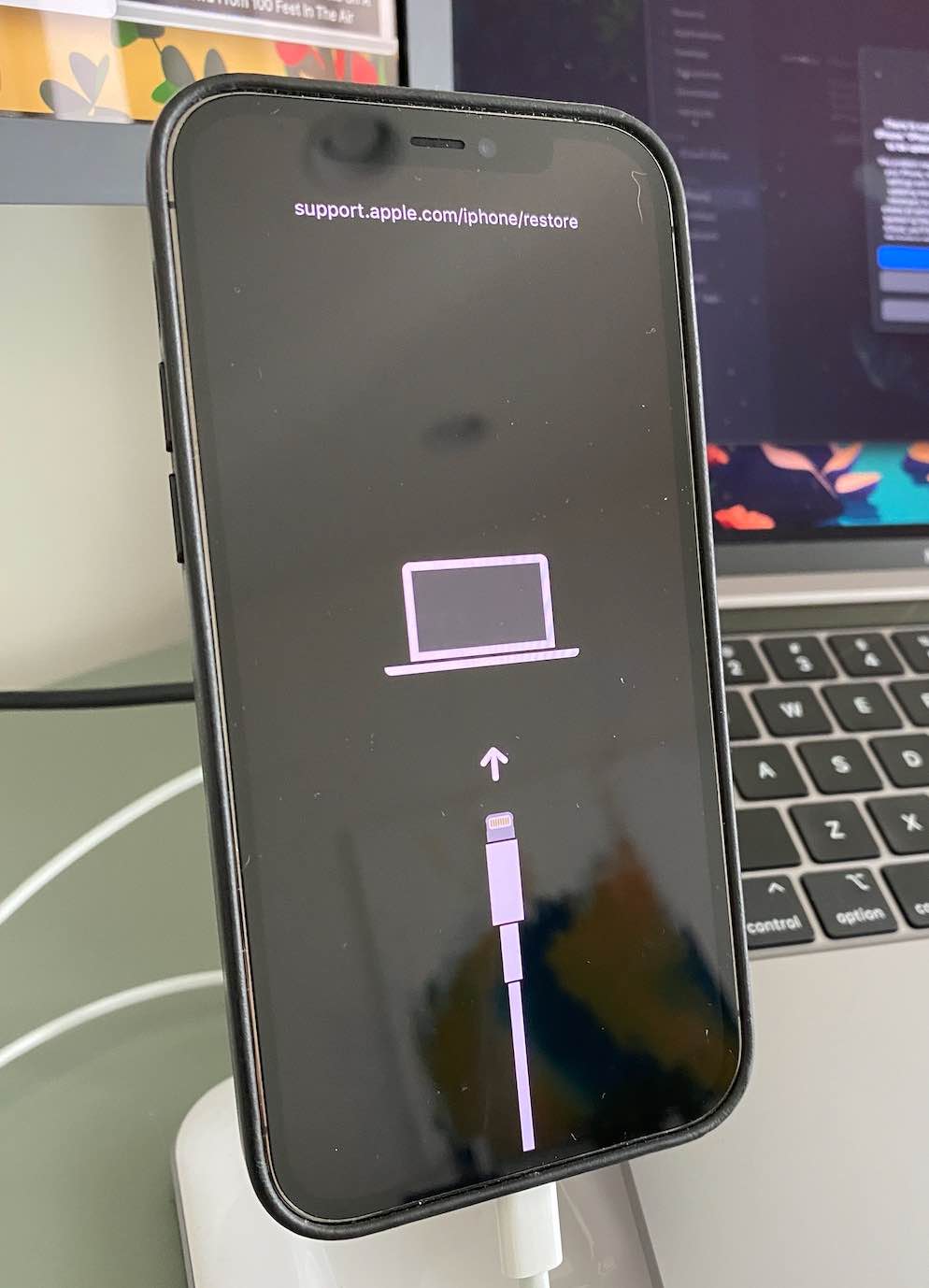
- Use the correct method from the list below for your device to enter Recovery mode. You will see a computer icon and a cable if successful.
- For iPhone 8 or later: Press and quickly release the volume up button. Press and quickly release the volume down button. Next, press and hold the side button until you see the recovery mode screen.
- For iPhone 7 and 7 Plus: Press and hold the Sleep/Wake button and Volume Down button simultaneously. Do not release the buttons when you see the Apple logo. Keep holding both buttons until you see the recovery mode screen.
- For iPad with Home Button: Press and hold the Sleep/Wake button and Home button simultaneously. Do not release the buttons when you see the Apple logo. Keep holding both buttons until you see the recovery mode screen.
- For iPad Pro with Face ID: Press and quickly release the volume up button. Press and quickly release the volume down button. Press and hold the top button until your device starts rebooting. Keep pressing the top button until your device enters recovery mode.
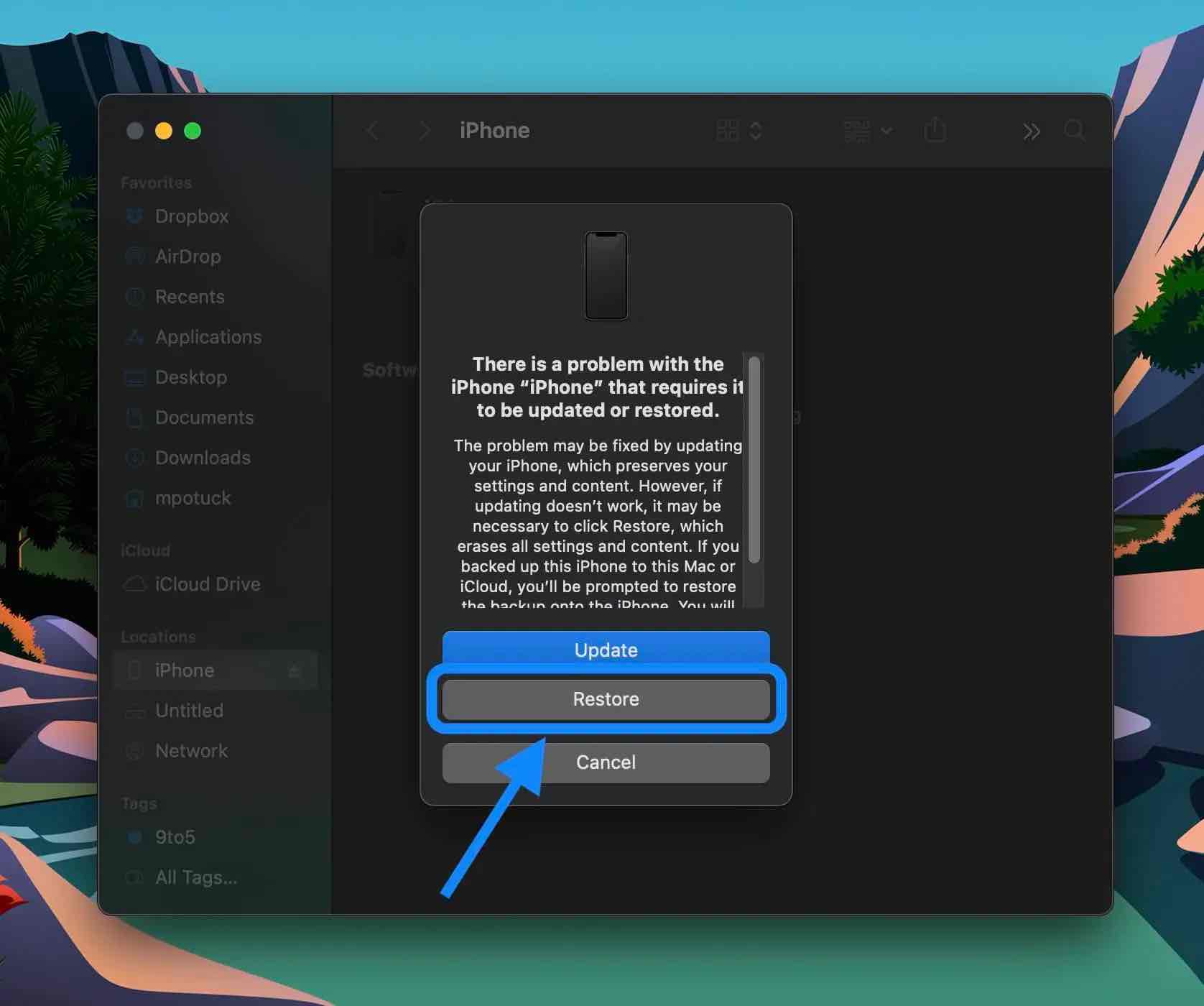
- When Restore/Update appears on your Mac or PC, choose Restore. This will wipe your device and install the latest non-beta version of iOS.
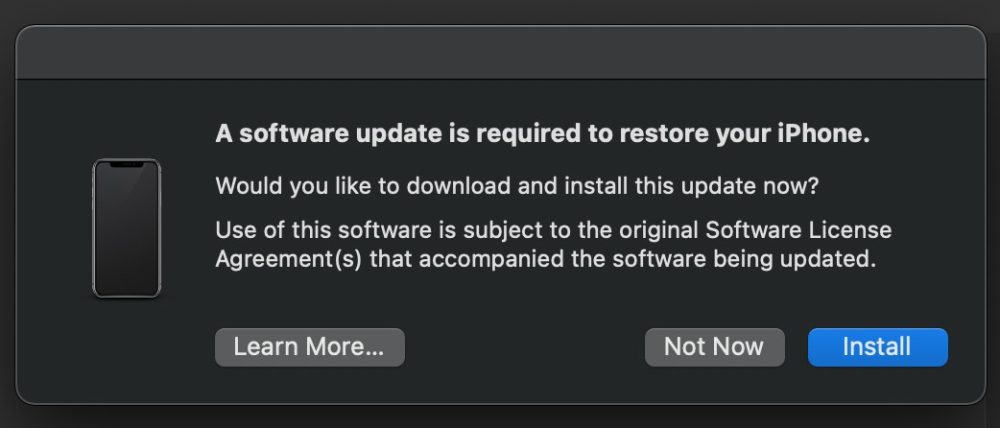
- Picking out Install when you see the prompt that an update is needed to restore your iPhone to complete the process.
After the software restore is complete, you can restore a backup from iOS 15 with your Mac/PC or iCloud (or set up your iPhone or iPad as a new device).
Here’s what uninstalling iOS 16 beta looks like on iPhone using Mac:
Alternatively, you can head to Settings > General > VPN & Device Management > iOS 16 Beta Profile > Delete Profile. But keep in mind that this won’t downgrade you to iOS 15. You’ll have to wait for the public release in the fall to exit the iOS 16 beta.
Find more details on uninstalling the iOS 16 beta in Apple’s support document and our how-to video:
Learn more about iOS 16:
FTC: We use revenue-generating automatic affiliate links. After.
Check out 9to5Mac on YouTube for more Apple news: